

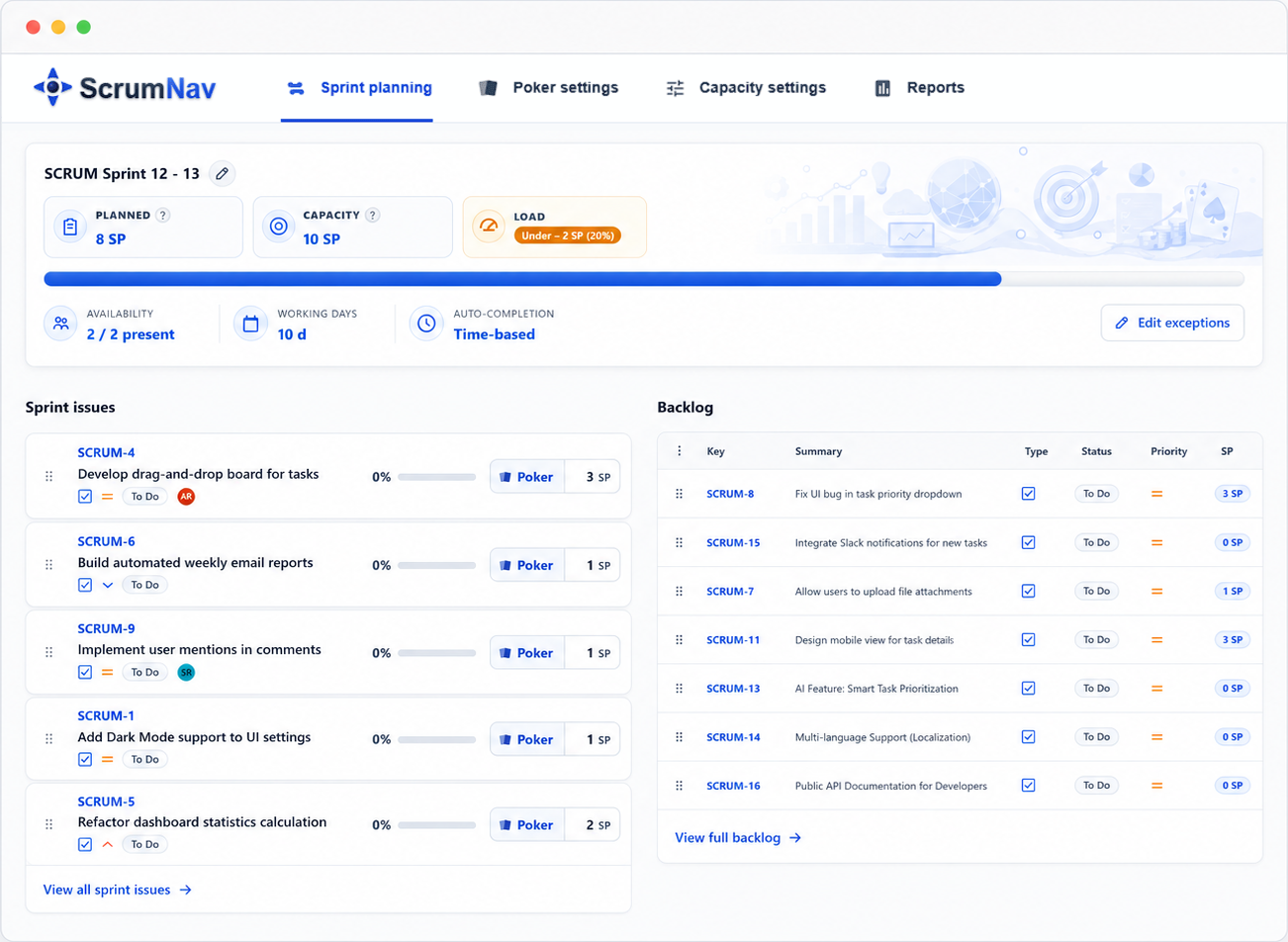
Best answer A realistic sprint plan often starts before the meeting with an unstarted draft sprint on the Jira backlog with refined candidates. Before you confirm scope, know your team’s capacity for this sprint, compare planned story points to that budget, and treat nearly-done carry-over as remaining load, not full points again.
Why Scrum sprints get over-committed in Jira
Jira sprint planning makes it easy to add issues to a sprint. It does not, by default, tell you when you have planned more than the team can finish. Without that signal, planning often looks like this:
- The Product Owner proposes a scope list from the product backlog.
- Story points are added or guessed on the fly.
- Someone asks “can we fit one more?” and the answer is usually yes.
- Holidays, part-time members, and support work are remembered after the sprint starts.
The result is predictable: mid-sprint scope cuts, rushed testing, or carry-over that makes the next planning session feel like déjà vu. Realistic planning is not about saying no to work. It is about making trade-offs before the sprint clock starts.
Capacity vs velocity in Jira
Teams new to story points often confuse two numbers:
| Term | What it means | Typical source |
|---|---|---|
| Velocity | Story points the team completed in past sprints | Sprint reports, closed-sprint history |
| Capacity | Story points the team can take on this sprint | Historical throughput adjusted by this sprint’s person-days, efficiency, and time off |
Velocity is backward-looking. Capacity is forward-looking. A team that delivered 38 points last sprint might only have capacity for 30 this sprint if two people are on holiday or a release eats three days.
Use recent velocity as a sanity check, not as sprint scope by itself. For a deeper look at which number should set scope in Jira, see velocity vs. capacity in Jira.
Five steps to a realistic Scrum sprint plan
The Scrum Guide treats sprint planning as a collaborative event, these steps keep that intent while making capacity visible in Jira.
- Start with availability, not the backlog. List who is in the sprint, default working days per person, shared holidays, and known absences. That gives you a capacity number (or range) before anyone opens the backlog.
- Point unestimated candidate work before you commit. Do not leave vague issues unpointed and hope estimates appear later, and do not size the whole Product Backlog. Run Scrum Poker in refinement or planning on the candidates you are seriously considering so capacity math uses real numbers.
- Account for carry-over honestly. Issues still in progress from the previous sprint should not always count at 100% of their story points. An issue at 80% done has less remaining work than a fresh 8-pointer. Adjust completion % or remaining load so carry-over does not silently fill the sprint. See how to handle sprint carry-over in Jira for the workflow and planning-load math.
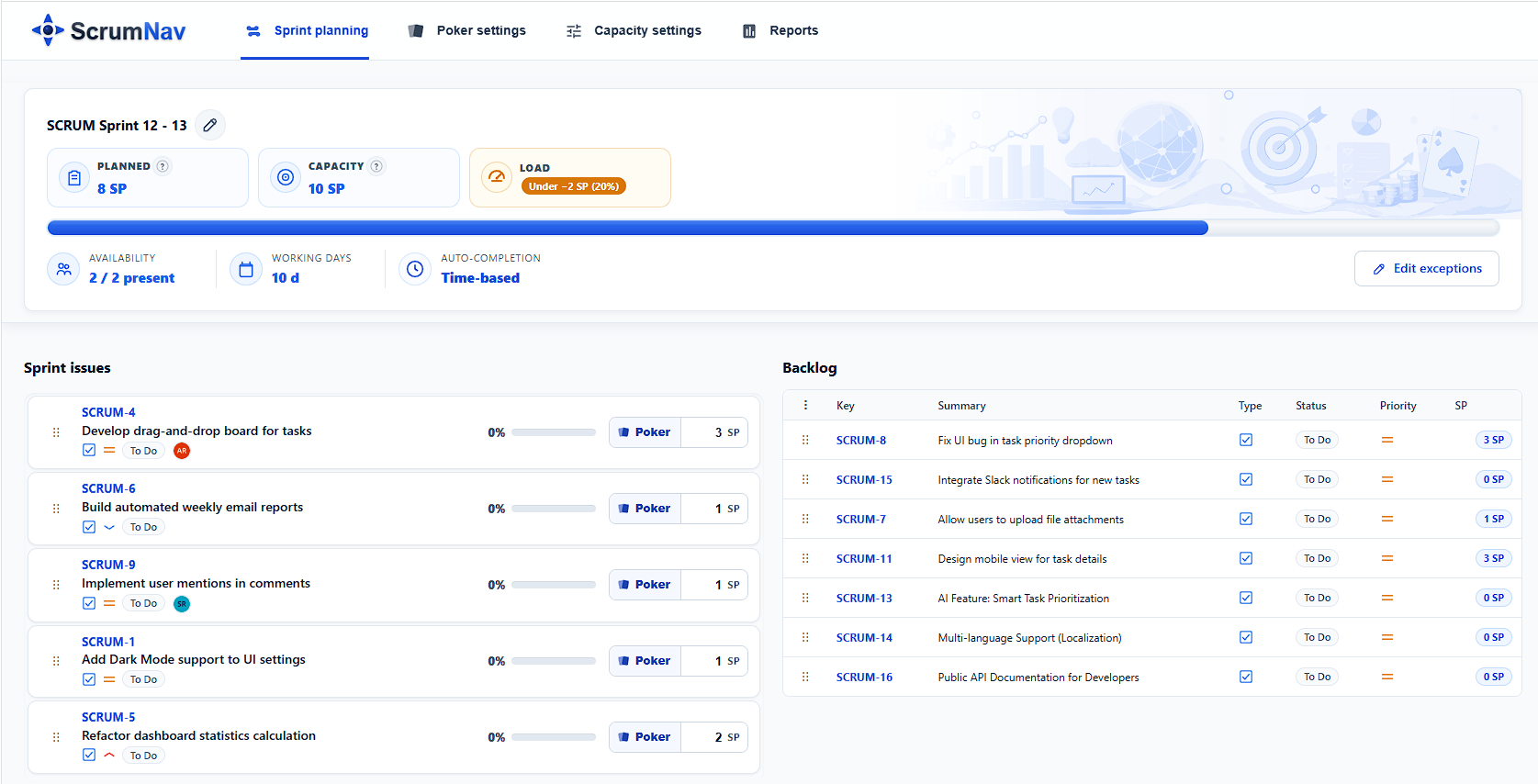
- Fill the sprint against capacity, not optimism. In Jira, a realistic sprint plan often starts before the meeting: Create sprint on the backlog, let the PO place refined candidates into that unstarted sprint, then use planning to confirm, estimate, and trim the draft. Watch planned load vs. capacity as scope is confirmed, ideally from issues already pre-placed during refinement. Jira allows live backlog dragging, but the cleaner workflow is to confirm or trim a draft sprint, not shop the Product Backlog mid-meeting. Stop when you are in range, often 85–95% of capacity, and negotiate what stays out with the Product Owner while everyone sees the same numbers. See the sprint planning agenda.
- Close the loop after the sprint. Compare planned vs. completed points and note forecast error. Teams that review closed-sprint history get better at the next planning session without guessing.
Example: capacity is 40 SP. Carry-over remaining load is 6 SP. If the team targets 90%, the sprint should land around 36 SP total planned load, leaving about 30 SP for new work. See carry-over in Jira for the remaining-load math.
Common mistakes (and what to do instead)
- Planning to last sprint’s velocity when the team shrank. Recalculate capacity when headcount or availability changes.
- Ignoring meetings and support. Use an efficiency percentage (e.g. 80%) so not every working day is treated as delivery time.
- Treating all story points as equal remaining work. In-progress items need completion modeling, see how to handle sprint carry-over and the capacity guide for status- or time-based options.
- No shared view during planning. If capacity lives in a spreadsheet and scope lives in Jira, the room will disagree. Keep load and capacity visible while issues move.
- Skipping retrospective data. If you never compare forecast to actual, every sprint starts from hope again.
Keep scope and capacity on one screen
ScrumNav supports this workflow in Jira Software Cloud: model sprint capacity from team days and time off, plan scope in one view with a live OK / over / under indicator, estimate with Scrum Poker, and learn from sprint reports after close. It does not replace conversation with the Product Owner, it gives the team one place to have that conversation with the same numbers visible.
New to the app? Start with the getting started guide.
Frequently asked questions
- What is the difference between sprint capacity and velocity?
- Velocity is past delivery (done story points per sprint). Capacity is what the team can take on this sprint given availability. Capacity should set sprint scope; velocity should sanity-check it. See velocity vs. capacity in Jira for the full breakdown.
- How much sprint scope should I leave as buffer?
- Many teams plan to 85–95% of calculated capacity so unexpected work, bugs, and meetings do not blow up the sprint. The right buffer depends on how predictable your work is. See how much buffer to leave in a Jira Sprint for worked examples and forecast-error calibration.
- Should carry-over issues count at full story points?
- Usually not. Work that is nearly done should consume less of the remaining sprint budget than a fresh issue. Model completion percentage or remaining work so carry-over does not double-count effort. See sprint carry-over in Jira for the full workflow.
- Does Jira show sprint capacity out of the box?
- Jira tracks story points on issues and sprint scope, but it does not model team availability, holidays, or a live load-vs-capacity bar during planning. Teams often use spreadsheets or apps like ScrumNav to connect scope to capacity inside Jira.
Want to see this workflow in practice? Try the ScrumNav interactive demo with sample Jira data.