

Short answer: ScrumNav sprint reports pull data from closed sprints in Jira and board settings to show how past sprints performed, so your next planning session is grounded in what the team actually delivered, not just what was promised.
Why sprint reports matter for Jira planning
Teams often plan the next Jira sprint from memory or a single velocity number, without looking at forecast error, carry-over patterns, or how long work really takes at each story point size.
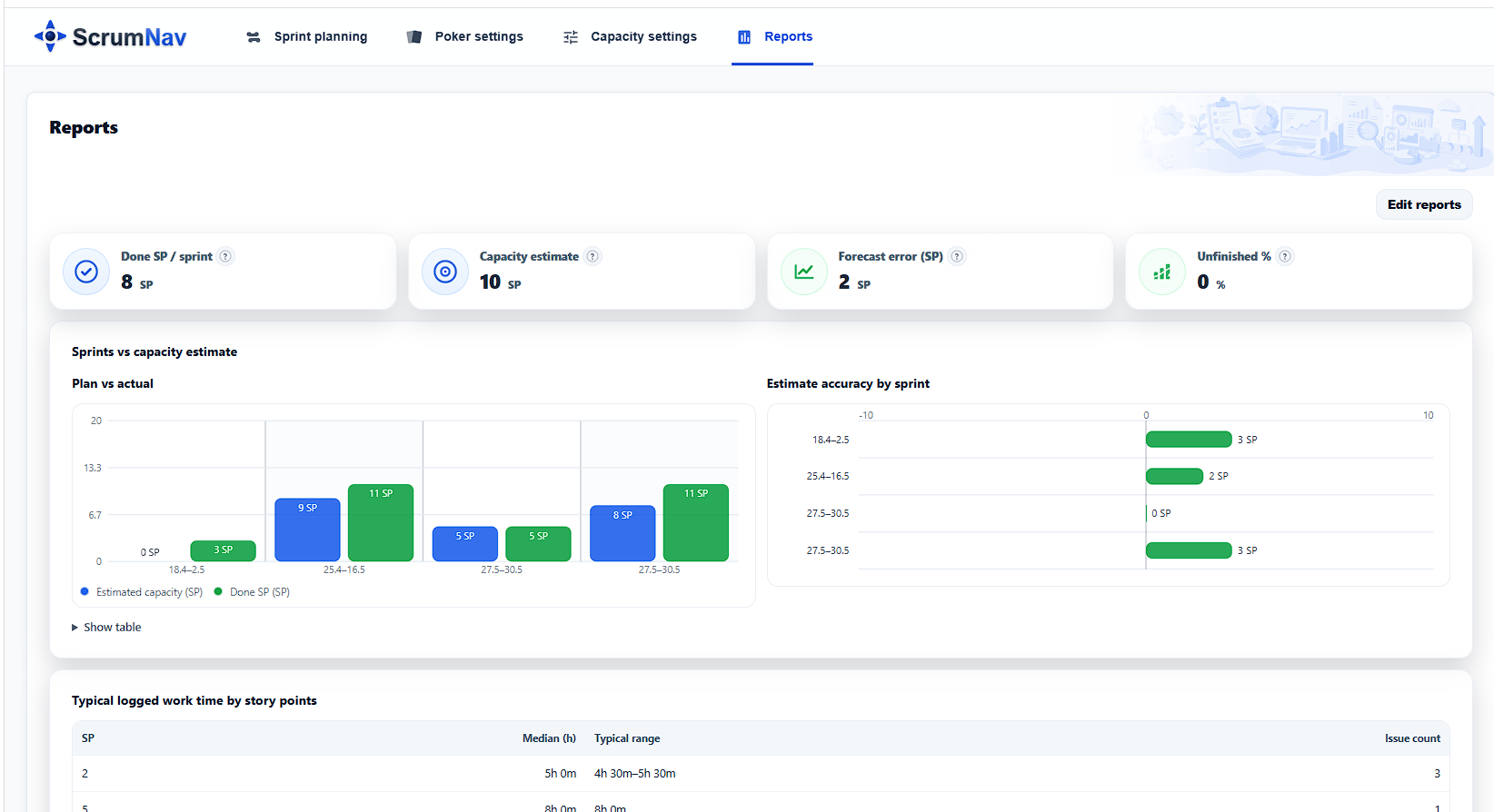
A Jira sprint report should show what was planned vs delivered, not just a single velocity number. ScrumNav puts that history next to your planning workflow in the same app and board context, so retrospectives and sprint planning can use the same facts, including the Jira carry over stories report for multi-sprint rollover trends.
What you can see
- Previous sprint summary, what was planned and what was delivered
- Team and capacity snapshot for the reviewed period
- Manual completion overrides applied during planning
- Sprints vs capacity estimate, how commitments compared to modeled capacity
- Typical logged time by story point from closed sprints
- Time in status, median dwell time and spread (historical observation)
- Carry-over stories report — average rollover %, new vs carried-over story points, rolled-in issue lists (Jira carry over stories report)
- KPIs and charts: plan vs actual, forecast accuracy, unfinished work, trends
- Configurable report sections, show only what your team uses
- History KPIs and charts respect previous sprints (count) from capacity settings, same window as planning velocity
How to use Jira sprint reports
- Open Reports in ScrumNav for the board you want to review.
- Pick report sections in preferences if you want a focused view for your team ritual (planning vs retrospective).
- Review the last closed sprint: compare planned story points to what reached Done.
- Check capacity accuracy: did the team consistently over- or under-fill sprints relative to the capacity model?
- Look at time per point: use historical logged hours by story point size as context, not as a fixed rule.
- Bring insights to the next planning session: adjust commitments in sprint planning using what you learned.
How teams use reports in practice
- Before planning: check velocity trend and last sprint forecast error to set a realistic scope target.
- In retrospective: discuss plan vs actual with charts the whole team can see in Jira. Use the Jira carry over stories report to review rollover trends and new vs rolling story points across recent sprints.
- With capacity settings: if sprints are often “over”, revisit team days, efficiency, or completion model in the capacity guide.
Frequently asked questions
- What data do ScrumNav sprint reports use?
- Reports combine sprint and issue data from Jira with board settings stored in ScrumNav, such as team capacity, completion model, and story point field. They focus on closed sprints and historical patterns.
- Can I choose which reports to show?
- Yes. You can select which report sections to display in ScrumNav report preferences for the board.
- Does ScrumNav replace Jira’s built-in reports?
- ScrumNav adds sprint planning context, planned vs delivered, capacity comparison, and typical logged time by story point, in the same app where you plan. It complements Jira rather than replacing all Jira reporting.
- Are time-per-point figures rules or estimates?
- Typical logged time by story point and status dwell metrics are historical observations from your closed sprints. They inform planning but are not fixed rules for future work.
Explore sprint reports and carry-over metrics in the interactive demo.