

Short answer: ScrumNav calculates sprint capacity from your team’s working days, efficiency, and time off. You configure that model here; the sprint planning view shows load vs. capacity and the OK / over / under status while you plan.
Why Jira teams need sprint capacity planning
Many teams plan sprints in Jira from story points alone without tying estimates to actual availability. Holidays, part-time members, and carry-over work are often tracked in spreadsheets, separate from Jira.
ScrumNav lets you define sprint capacity in Jira per board and sprint so planning can compare backlog load to a realistic number, not a spreadsheet on the side. For how capacity differs from past velocity when scoping a sprint, see velocity vs. capacity in Jira.
What you can do
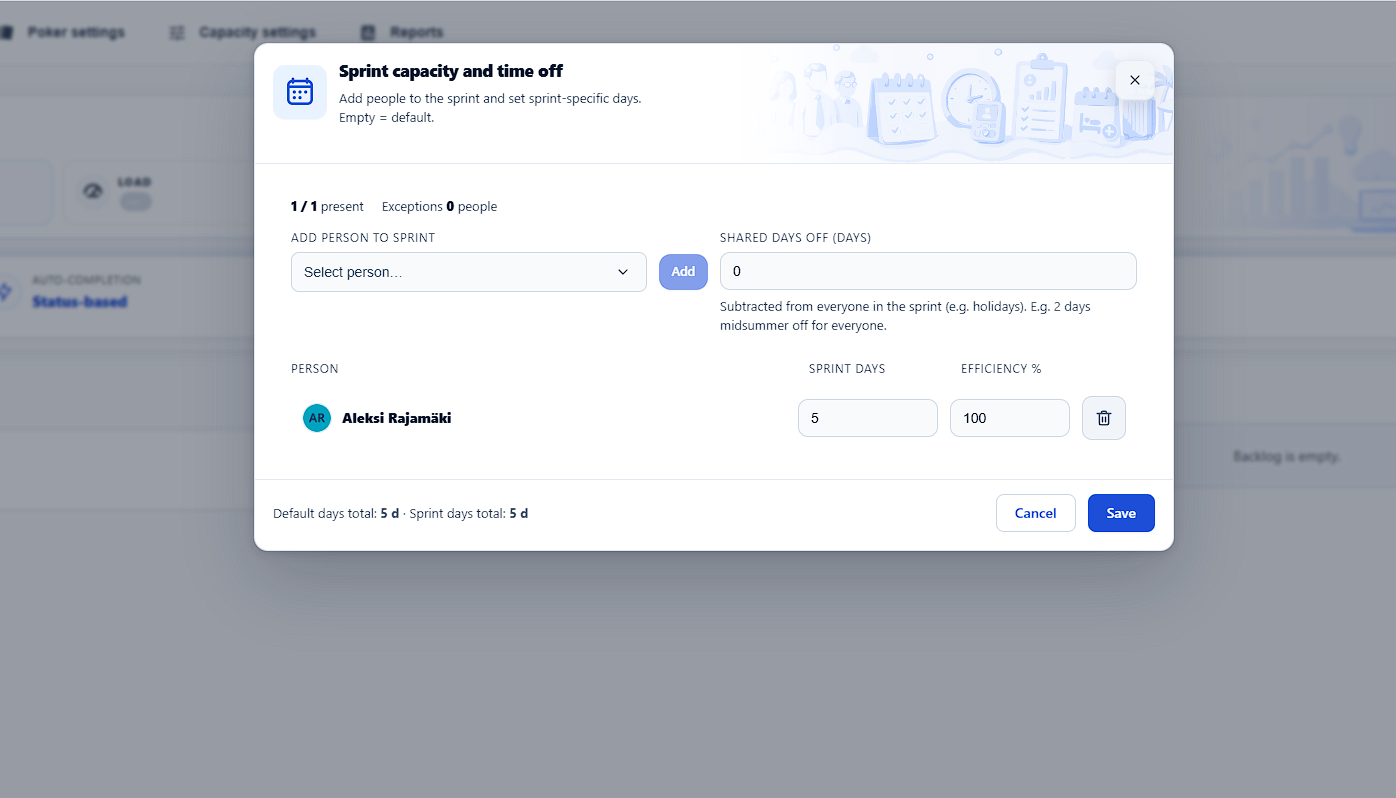
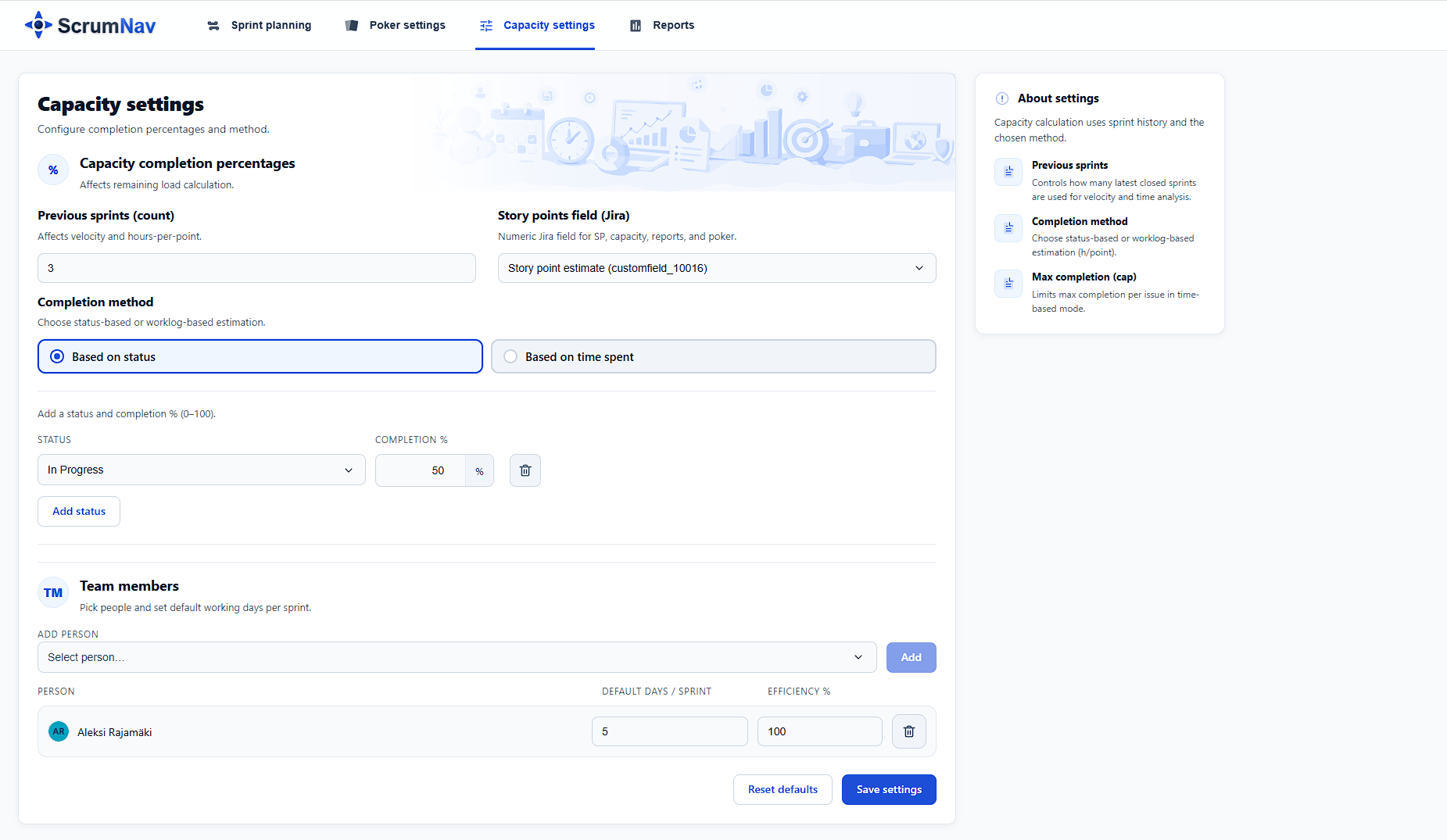
- Define team members with default working days per sprint and efficiency %
- Set sprint-specific working days per person (blank uses the default)
- Add shared time off that applies to everyone in the sprint
- Choose a completion model: status-based or time-based from closed sprints
- Set previous sprints (count): how many latest closed sprints feed velocity, hours-per-point, and historical analysis (0–12; also in board setup)
- Map workflow statuses to completion % for remaining-load calculations
- Feed the sprint planning view with a capacity number the team can plan against
How to set up sprint capacity in Jira
- Complete board setup if prompted, choose your board, story point field, and team. See the getting started guide.
- Open capacity settings for the board and add team members with default working days per sprint and efficiency.
- Choose a completion model: map Jira statuses to completion %, or use logged time from closed sprints to estimate typical hours per story point.
- Select the sprint you are planning in the sprint planning view.
- Open sprint capacity and fine-tune sprint-specific working days or shared holidays for that sprint.
- Open sprint planning and use the capacity bar and OK / over / under status while you fill the sprint. See the planning guide.
Completion % and remaining load
Capacity is not just about total story points. ScrumNav can factor in how “done” work already is. See how to handle sprint carry-over for why remaining load matters at planning time, and the new vs rolling story points report for measuring rollover after sprints close:
- Status-based completion: each workflow status maps to a completion percentage (0–100).
- Time-based completion: uses closed sprint history and worklogs to estimate typical logged hours per story point.
- Manual override: adjust completion % on a ticket while planning; affects how much of its points count as remaining load.
Frequently asked questions
- How does ScrumNav calculate sprint capacity?
- ScrumNav combines board-level team settings (default working days per sprint, efficiency percentage) with sprint-specific adjustments such as per-person days and shared time off. It then compares planned story points and remaining load to that capacity.
- Can I account for holidays and absences?
- Yes. You can set sprint-specific working days per team member and add shared time off that reduces availability for everyone in the sprint.
- Where do I see sprint load vs capacity?
- In the sprint planning view at the top of the screen. Capacity settings define the model; planning shows load, capacity, and the OK / over / under status while you move issues and update estimates.
- What does “previous sprints (count)” affect?
- It is a board-level setting in the setup wizard and capacity settings (0–12 closed sprints, default 3). The same window is used across ScrumNav for recommended capacity and velocity in sprint planning, hours-per-point in time-based mode, KPIs and history in sprint reports, and the carry-over stories report for rollover % across closed sprints.
- Does completion % affect capacity?
- Yes, depending on your board settings. You can model completion by Jira status or by logged time from closed sprints. Manual completion overrides also affect how much work counts as remaining in the planning bar.
See sprint capacity planning in the interactive demo.